Apple Notes Review — Why This Free, Built-In App Is Better Than You Think
Apple Notes isn’t just a default app buried in your iPhone or Mac. Over the years, it has evolved from a barebones memo pad into a surprisingly powerful and deeply integrated note-taking platform. With its seamless sync, handwriting support, collaborative tools, and privacy-first architecture, Apple Notes has carved out a significant user base—especially for those who live within the Apple ecosystem.
But what happens when you use it outside Apple hardware—through its web version at iCloud.com/notes? Is it truly a contender among top note-taking platforms like Notion, Evernote, and OneNote? In this in-depth review, we dive into the features, UI, limitations, and performance of Apple Notes—on devices and via the web—to help you decide if it’s enough for your productivity needs.
Background and Evolution
Apple Notes was introduced with the first iPhone as a simple notepad app. It mimicked the look of yellow legal pads—functional but primitive. Over the years, Apple quietly transformed it into a versatile tool:
- iOS 9 added iCloud sync, attachments, sketching, and password protection.
- iOS 11 brought document scanning, tables, and note pinning.
- iOS 15-16 introduced tags, mentions, and Smart Folders.
- And with iOS 18, Apple is doubling down with AI-driven summaries, Math Notes, Smart Script, and live audio transcription.
The core value? All of these upgrades are free and seamlessly available on iPhone, iPad, Mac, and online via iCloud.
Cross-Platform Capabilities and Web Access
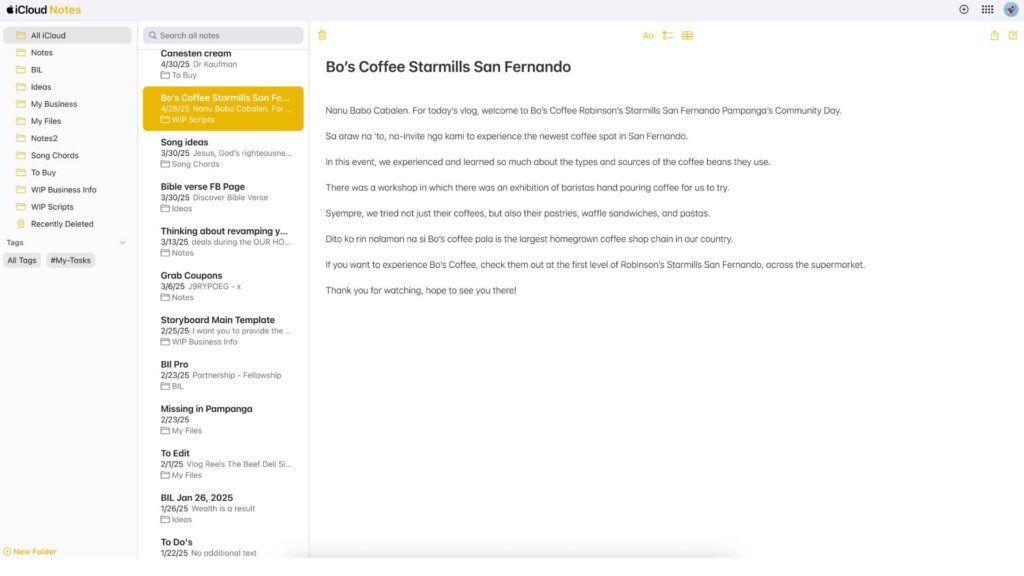
Apple Notes works best in the Apple ecosystem. iPhone, iPad, and Mac users get the richest experience, but web access via iCloud.com/notes ensures your notes are never out of reach—even on a Windows PC or a borrowed machine.
The web version is utilitarian. You can view, edit, create, and organize notes in folders. But it lacks several power features found on native apps—like handwriting support, Quick Notes, and deep Share Sheet integration. There’s also a noticeable delay when syncing changes across web and devices. Still, for occasional access on non-Apple hardware, it gets the job done.
User Interface and Experience
Apple Notes’ interface is clean and distraction-free. On iOS and macOS, the experience is polished and fluid. The sidebar on the left shows your folders and Smart Folders, while the right pane lets you scroll or search through notes. Key features include:
- Subfolders and folders: up to five levels deep
- Smart Folders: filter notes automatically based on tags, mentions, or date
- Tagging system: use hashtags directly within notes to group them
- Powerful search: finds text, handwriting, scanned text, or even objects in images
- Quick Notes: accessible via Apple Pencil or Control Center, great for capturing ideas on the fly
On iCloud.com, the UI mirrors macOS but feels slightly dated. Navigation is straightforward, but formatting options are limited and there’s no handwriting/drawing support.
Feature Deep Dive
Text Formatting and Organization
You can format text with titles, headings, bold, italics, and bulleted or numbered lists. There’s support for:
- Tables
- Checklists
- Collapsible sections (great for long-form notes)
- Note linking using “>>” to reference another note
While not as dynamic as Notion’s databases, Apple Notes excels in providing just enough structure for most users.
Handwriting and Drawing
On iPad, Apple Pencil transforms Notes into a sketchpad or math lab. The new Smart Script feature refines your handwriting and aligns text, making it more legible and editable. You can mix typed and handwritten content easily.
Audio, Attachments, and Scanning
You can add:
- Photos
- PDFs
- Maps
- Links
- Files from the Files app
- And now, audio recordings that are automatically transcribed with iOS 18
The built-in document scanner is exceptional—auto-detecting borders, flattening curves, and even letting you annotate scanned docs.
Collaboration and Sharing
Apple Notes supports collaborative editing. You can:
- Invite others to edit a note or folder
- Mention people to call their attention
- See real-time edits (though not as interactive as Google Docs)
This makes Notes surprisingly usable for lightweight teamwork, meeting notes, or shared grocery lists.
Sync, Storage, and Privacy
Your notes are stored in iCloud, and by default, you get 5 GB of free storage (shared with Photos, iCloud Drive, and backups). If you add media-heavy content, you’ll likely need to upgrade to a paid iCloud+ plan, starting at $0.99/month for 50 GB.
Security-wise, Apple Notes has impressive credentials:
- Locked Notes can be protected by passcode, Face ID, or Touch ID
- End-to-end encryption for locked notes
- Advanced Data Protection (opt-in) encrypts nearly all iCloud data, including Notes
However, enabling Advanced Data Protection disables iCloud web access for Notes—a trade-off between convenience and security.
Pros and Cons
Pros
- Completely free and pre-installed
- Seamless sync across iPhone, iPad, and Mac
- Excellent handwriting support with Apple Pencil
- Built-in scanner and transcription features
- Privacy-first design with encryption options
- Lightweight collaboration tools
- Smart Folders, tags, and filters enhance organization
Cons
- No native apps for Android or Windows
- Web version is limited and feels outdated
- No public publishing or dynamic embeds like Notion
- Vendor lock-in makes exporting notes cumbersome
- 5 GB iCloud limit fills up quickly with attachments
Alternatives Comparison
| App | Platform Support | Free Plan | Best For | Drawbacks Compared to Apple Notes |
|---|---|---|---|---|
| Evernote | iOS, Android, Web, Windows | ✅ | Web clipping, heavy users | Limited free plan, more complex UI |
| OneNote | All platforms | ✅ | Office users, stylus input | Slower sync, cluttered interface |
| Notion | All platforms | ✅ | Databases, content creators | No offline handwriting, steeper learning |
| Google Keep | iOS, Android, Web | ✅ | Fast notes, reminders | No hierarchy or advanced formatting |
| Standard Notes | All platforms | ❌ (Paid) | Privacy-focused note-taking | Lacks visual interface, not feature-rich |
Apple Notes stands out for its balance of usability, integration, and privacy—but only if you’re already inside the Apple ecosystem.
Ideal Use Cases
Apple Notes works well for:
- Students needing to scan documents, organize notes by subject, and record lectures
- Professionals who want quick notes, collaborative checklists, and document storage
- Casual users writing to-do lists, recipes, or personal journals
- Creative minds using Apple Pencil for sketching or freehand math equations
- Privacy-conscious users who value Apple’s end-to-end encryption options
It’s not meant for heavy publishing, deep project management, or building complex databases—but for 80% of users, it checks all the right boxes.
Final Verdict
Apple Notes has matured from a basic tool into a genuinely impressive app. Its performance is smooth, its feature set keeps expanding, and its integration with Apple devices is second to none. If you’re an Apple user, there’s almost no reason not to use it as your primary note-taking app.
Of course, the web version is still barebones, and its lack of true cross-platform support holds it back in mixed-device environments. But if you’re deep into Apple’s ecosystem, this is a no-brainer.
Summary
Apple Notes is a free, secure, and well-integrated note-taking app that covers most needs—from casual checklists to advanced handwritten math notes. It’s not perfect, especially on the web, but it continues to punch above its weight—especially considering the price: zero.
Media
12 Incredible Apple Notes Features You Didn’t Know About
The iPhone Notes App is AMAZING when you know how to use it! (10 Tips)
Master Apple Notes: 10 Hacks for Ultimate Productivity!