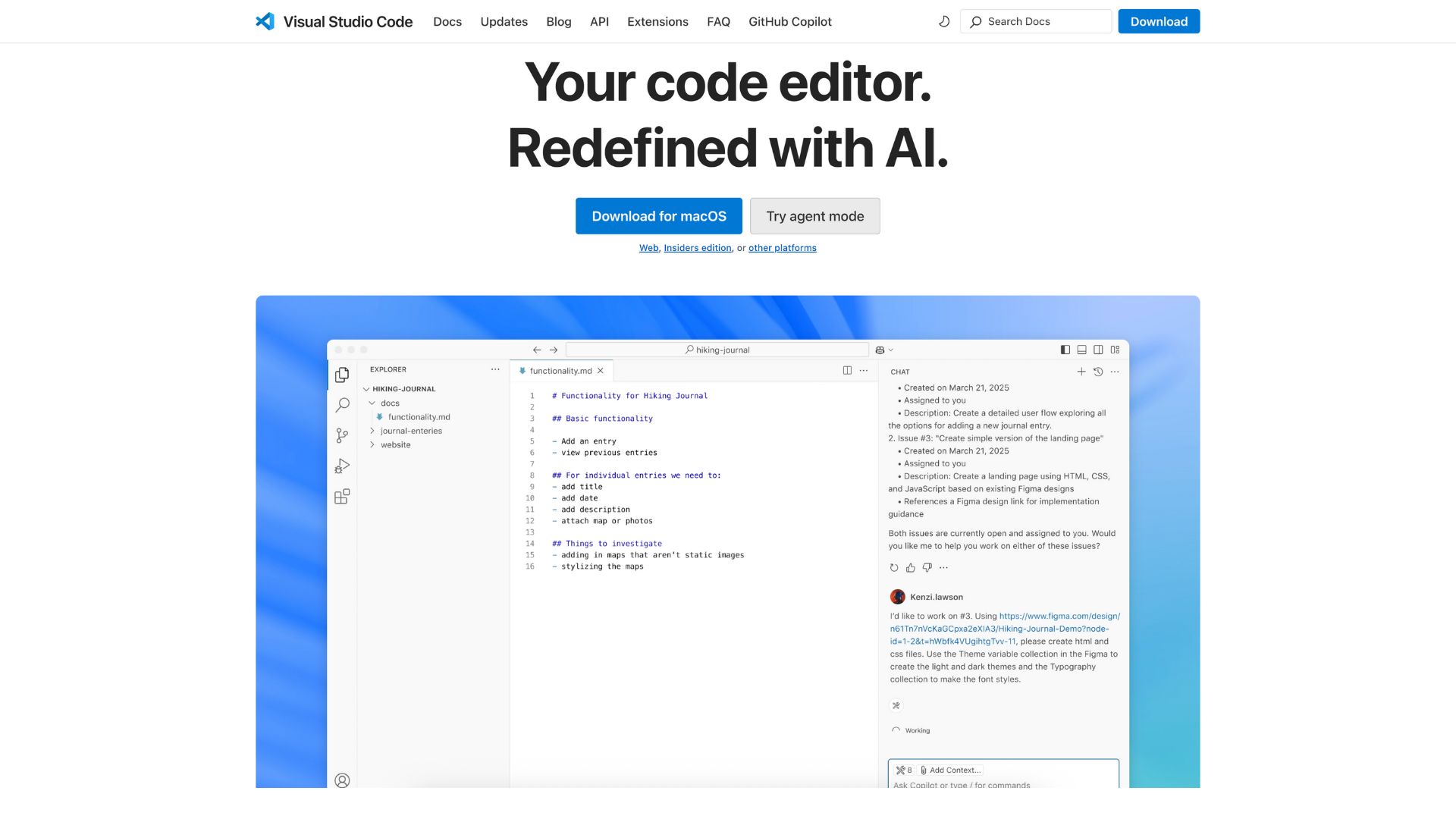
Visual Studio Code Review Features, Pricing, Pros & Cons
Visual Studio Code (commonly known as VS Code) is not just any code editor—it’s a developer’s best friend. Combining the speed of lightweight editors with the full-featured power of an IDE, it offers intelligent code completion, integrated Git, and a vibrant extension ecosystem. Whether you’re a solo developer, part of a dev team, or working on remote projects, VS Code streamlines coding like no other tool.
From reducing the friction in your coding workflow to boosting productivity with AI-powered features, VS Code addresses core development pain points. This editor is perfect for web and cloud developers, data scientists, app creators, and anyone who writes code across Windows, macOS, Linux, or even in your browser.
Company Background
Launched on April 29, 2015, by Microsoft, VS Code marks a pivotal shift in the company’s embrace of open-source software. Built on the MIT‑licensed Code‑OSS project, the official product maintains proprietary branding and telemetry features, though switching them off is easy.
Over time, VS Code has evolved rapidly through monthly releases, adding features like GitHub Copilot integration, remote development tools, and intelligent code suggestions driven by artificial intelligence.
Website: https://code.visualstudio.com/
Key Features
Code Editing & IntelliSense
At its core, VS Code is powered by the Monaco engine, delivering lightning-fast syntax highlighting, bracket matching, and folding. The IntelliSense system makes coding fluid, offering intelligent auto-completions, parameter insight, and context-aware suggestions. You type less and build more—especially useful in languages like JavaScript, TypeScript, and Python.
Debugging Tools
Forget bouncing between your editor and debugger. VS Code includes a built-in debugger with configurable breakpoints, variable inspection, and call stack navigation. Support for Node.js is integrated, while extensions unlock debugging for Python, C++, Java, and more. Debug, iterate, and fix—all in one place.
Git & Version Control
Native Git integration brings version control straight into the sidebar. You can stage changes, commit, diff, handle pull requests, and view inline blame—all without touching the terminal. A must-have feature for modern collaborative development.
Integrated Terminal & Terminal IntelliSense
The seamless terminal support allows multiple shells like PowerShell, bash, or zsh to run right inside the editor. Split panes, clickable links, and smart tab completions make managing your workflow effortless.
Extensions & Marketplace
VS Code’s thriving Marketplace features over 40,000 extensions—from language packs to AI tools. Whether you want cursor themes, linters, debuggers, or superior productivity plugins like GitLens and Copilot, there’s a tool that enhances your daily grind.
Remote Development & Web Version
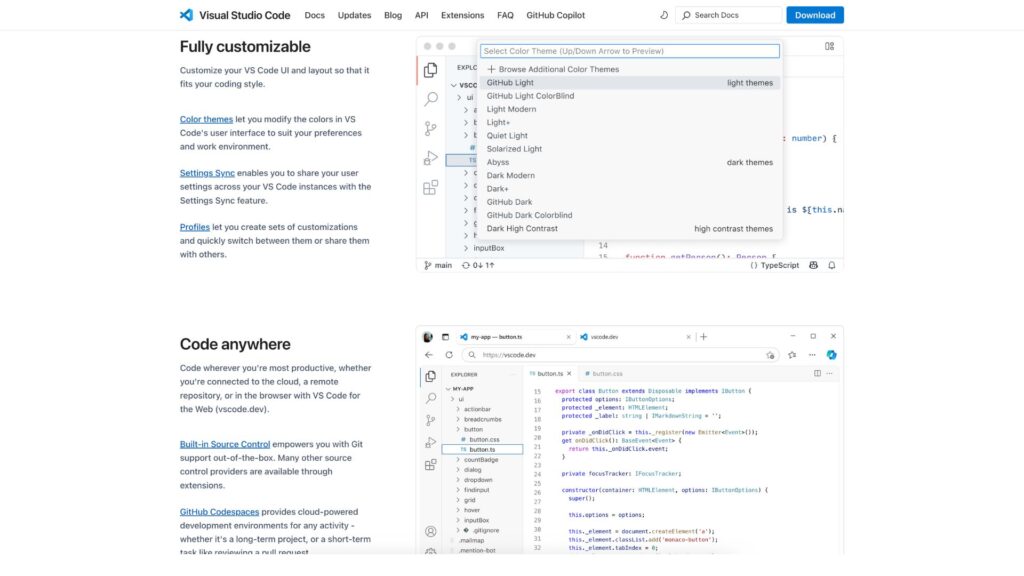
Work on code anywhere with Remote–SSH, Containers, or WSL options. Even more impressively, vscode.dev lets you code in the browser—handle quick edits, review pull requests, or contribute to open-source instantly, without installing anything.
AI-Driven Features: Copilot, Next Edit Suggestions & Agent Mode
Bringing AI into coding, Copilot provides real-time autocompletions and even tackles entire coding patterns. Next Edit Suggestions (NES) anticipate your next move—filling in code blocks before you type. And in Agent Mode, Copilot acts like a junior dev, running tasks, fixing bugs, and iterating steps until your request is complete. Just prompt it: “Write tests for this function,” and watch it take action.
Notebook & Data Science Support
Built-in notebook support means you can work with Jupyter files smoothly—run cells, visualize outputs, and seamlessly integrate with Python tools. It’s ideal for data science workflows, bridging analysis and coding effortlessly.
User Interface & Experience
The interface is clean and intuitive: a command palette for quick actions, a flexible sidebar, and a customizable status bar. New users enjoy a friendly welcome screen, helpful walkthroughs, and theme suggestions. Accessibility is baked in, with keyboard shortcuts, readable fonts, and a high-contrast UI for all eyes.
Platforms Supported
VS Code runs on Windows, macOS, and Linux desktops (using Electron), while vscode.dev brings it to web browsers—ideal for quick edits or remote access. There’s also an Insiders build with early experiments, letting you preview upcoming features each month.
Pricing
The best part? VS Code and most of its extensions are completely free—no tiers, no trials, no restrictions. Even premium tools like GitLens or Copilot are optional. This zero-cost approach has helped VS Code become the world’s most popular code tool.
Pros and Cons
Pros
- Completely free with enterprise power
- Rich extension ecosystem and AI-driven tools
- Robust Git integration and debugging
- Cross-platform consistency and remote support
Cons
- Default telemetry; must be disabled for privacy-conscious users
- Heavy use of extensions can slow performance
- IDE-level customization may require configuration
Telemetry and Privacy
VS Code collects usage data to improve user experience. If it concerns you, disable it instantly in settings by turning off telemetry. Community insights show many users prefer this data-helpful approach, but opt-out is simple and respected—your choice, your control.
Community Support & Learning
Developer resources include official docs, how-to guides, and release notes. For issue tracking and feature requests, the GitHub repo is active and responsive. External help is everywhere—Stack Overflow threads, Reddit discussions, YouTube tutorials, and blog walkthroughs keep support close at hand.
Ideal Use Cases
- Web & Front-End Development: Integrated Chrome debugging, Live Server extensions, and instant HTML/CSS rendering shorten development cycles.
- Data Science & Python Projects: Jupyter integration, variable explorers, and AI aiding make notebook-based workflows seamless.
- Remote Development and Teams: With Live Share, containers, and SSH support, teams collaborate with minimal setup.
- Freelancing & Prototypes: No-cost, environment-portable, and feature-packed—perfect for freelancers or proof-of-concept work.
Real User Feedback
From StackOverflow and Reddit, one user noted, “I opt into telemetry because it helps make the product better,” while another highlights VS Code’s practicality compared to traditional editors. Comments around the AI features echo excitement over Copilot’s game-changing assistance, yet some competition stirs when comparing context-handling tools.
Alternatives at a Glance
| Alternative | Great for | How It Compares |
|---|---|---|
| VSCodium | Privacy-focused, open-source enthusiasts | Same core experience, no telemetry |
| Eclipse Theia | Enterprise-grade, web IDE frameworks | More modular, less polished |
| JetBrains IDEs | Deep refactoring, specialized language support | Paid, heavyweight, full IDE toolset |
| Sublime Text | Lightning-fast, minimalistic editor | Ideation over cohesive IDE features |
| Zed, Echo Comet | Emerging AI-first alternatives | Less mature, but promising future |
Final Thoughts
Visual Studio Code shines as a free, full-featured editor that effortlessly stretches into IDE territory. With powerful extensions, remote workflows, and AI-enhanced coding, it caters to beginners and pros alike. Just toggle telemetry as needed, curate your extensions wisely, and tailor VS Code to your style. Explore Agent Mode to offload routine tasks, or switch builds for full privacy control.
If you prefer a completely open-source edge, check out VSCodium. For language-specific IDE depth, JetBrains tools still hold their ground. But for accessibility, community, and sheer capability, VS Code stands out.
Media
Learn Visual Studio Code in 7min (Official Beginner Tutorial)
The ULTIMATE VS Code Setup – Extensions & Settings 2025
How to install Visual Studio Code on Windows 10/11 [ 2025 Update ] Fall in Love with Coding!